

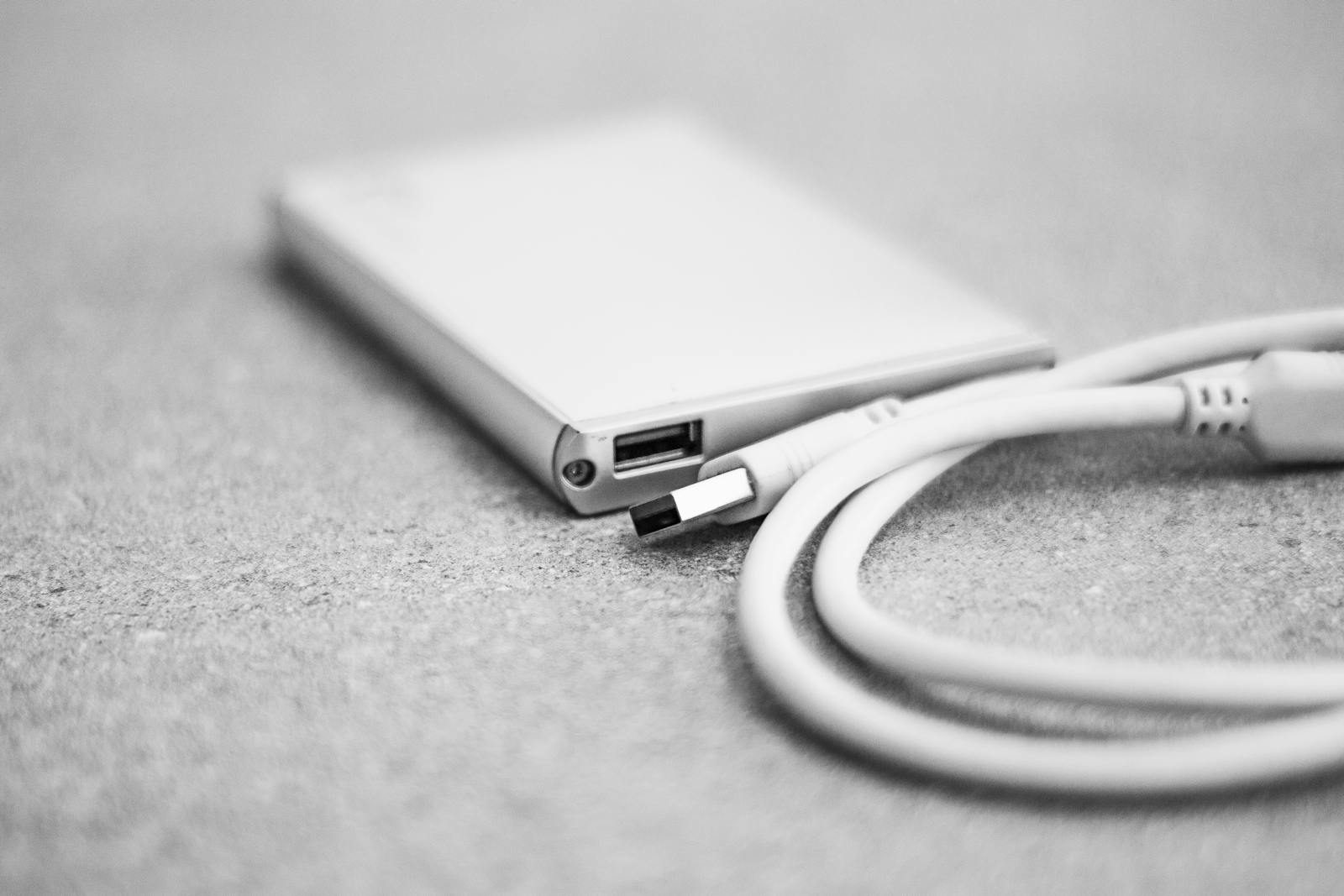
Storage is where people buy the wrong thing for the right reason. They chase capacity (“more terabytes!”) and ignore the specs that decide whether the drive is fast enough, reliable enough, or even the right kind for the job. What matters is the interface, the endurance and how you actually use it – capacity is the easy part.
This hub maps storage by what you’re storing and why, and names the deciding spec each time. And it carries one non-negotiable message: storage fails, so a copy that only exists in one place isn’t backed up – it’s waiting to be lost.
- Want speed for work or editing? An external SSD – judged on interface, not just capacity.
- Bulk storage or backup on a budget? An external hard drive for cost-per-terabyte.
- Files everywhere, always on? A NAS for your own private cloud and real backups.
TechnoQia · Storage map
Table of Contents
Which storage do you actually need?
Match the drive to what you store and why – one spec, not capacity, decides it.
Decider: the interface (USB 3.2 / Thunderbolt) and real-world speed – that, not capacity, sets the pace.
Decider: cost-per-terabyte – HDDs win on price when speed is not the point.
Decider: the speed class and rating for your device – the wrong class drops frames or stutters.
Decider: drive bays and redundancy (RAID) so a single failed disk does not lose your data.
External SSDs
An external SSD is the right call when speed matters – editing, big transfers, running apps off it. The decider is the interface: USB 3.2 or Thunderbolt sets the real-world speed far more than capacity does. See our external SSD guides.
External hard drives
For bulk storage and backups where speed isn’t critical, a mechanical hard drive still wins on cost-per-terabyte by a wide margin. They’re ideal for archives and second backup copies. The external hard drive guides have the value picks.
Memory cards
The right memory card is about speed class and rating, not just size: cameras and handhelds need a minimum sustained speed or they drop frames and stutter. Match the card to the device’s requirement. See the memory card guides.
NAS
A NAS is your own private cloud and a real backup target in one – always-on storage you control, with redundancy so a single failed disk doesn’t lose your files. The decider is bays and RAID. Start with the NAS guides.
USB flash drives
Flash drives are for moving files and quick portability, not long-term storage – they can fail silently and shouldn’t hold your only copy. Look for a current USB standard for speed. See the USB flash drive guides.
How to choose storage without overspending
First, buy for the interface and use, not the capacity. A fast SSD on the right port beats a bigger, slower drive for working storage; a cheap HDD beats an SSD for archives. Second, follow 3-2-1 for anything you can’t lose: three copies, on two types of media, with one off-site. Storage is cheap; recreating lost files is not.
Where to start with storage
Split your needs into two: fast working storage (an external SSD) and safe backup storage (a hard drive or NAS, ideally with an off-site copy). Buy the drive that fits each job rather than one big drive trying to do both. And set up a backup before you need it.
Frequently asked questions
SSD or hard drive – which should I buy?
Buy an SSD for anything where speed matters: working files, editing, running apps. Buy a mechanical hard drive for cheap bulk storage and backups where speed is not critical. Many people use both – an SSD to work from and an HDD or NAS to back up to.
How much storage do I actually need?
Estimate your largest real library (photos, video, games) and add headroom rather than buying the biggest drive on offer. For backups, you need at least as much capacity as the data you are protecting. Over-buying capacity is common and rarely necessary.
What is the 3-2-1 backup rule?
Keep three copies of important data, on two different types of media, with one copy off-site (such as cloud or a drive stored elsewhere). It protects against drive failure, theft and disasters. A single copy on one drive is not a backup.
What memory card speed do I need?
Match the card to your device’s requirement: high-resolution video and burst photography need a higher speed class (such as V30/V60 or UHS-II) or footage drops frames. Check the camera or handheld’s recommended rating before buying.
Is a NAS worth it for home use?
If you have files across several devices, want your own private cloud, or need automated backups, a NAS is very worthwhile. With redundancy it survives a single drive failure. For a single user with modest needs, an external drive may be enough.
Can I rely on a USB flash drive for important files?
No. Flash drives are for transfer and convenience, not long-term storage – they can fail without warning and should never hold your only copy. Use them to move data, but keep the real copies on backed-up drives.
Related hubs
Storage serves the rest of your setup: see laptops for internal upgrades, networking to reach a NAS reliably, and computer hardware for drives that go inside the PC.