

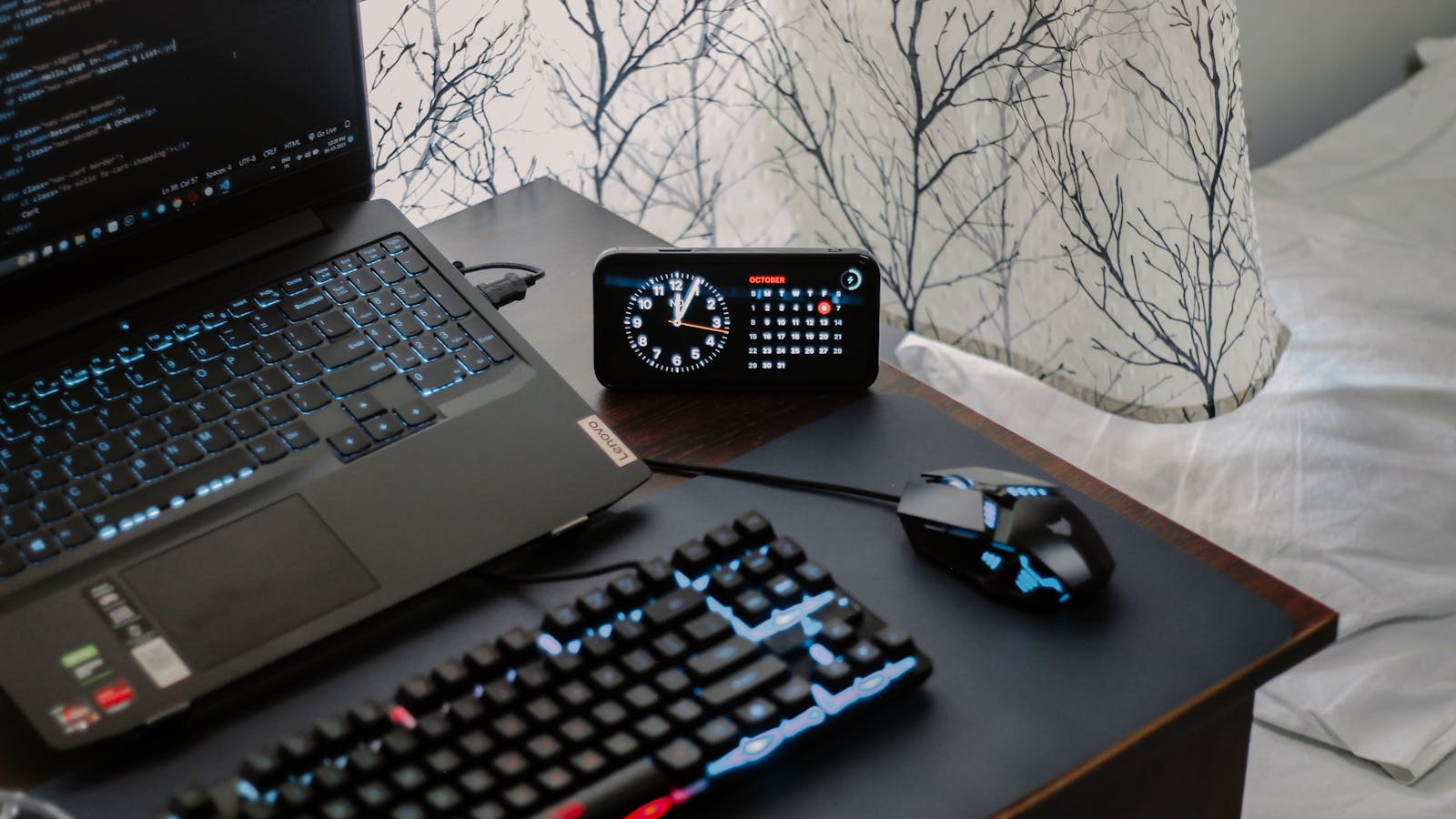
A good home office isn’t about owning the most gadgets – it’s about removing friction. The upgrades that change your day are the boring ones: a screen at the right height, a single cable that docks everything, light that doesn’t wash you out on calls. The spec that matters here is ergonomics and connectivity, not features.
This hub covers what people add first to a desk and names the one thing that decides each. The throughline: spend on comfort and on cutting cable chaos, because those are what you feel every working hour – not on the gadget that photographs well.
- Neck or eye strain? A monitor at the right size and height is the biggest comfort win.
- Look washed-out on calls? A webcam and mic plus a little light fixes how you come across.
- Cable chaos? A USB-C hub turns one cable into your whole desk.
TechnoQia · Home office map
Table of Contents
Which home-office upgrade should you make first?
Fix the friction you feel daily – one spec, not the gadget count, decides it.
Decider: size and a height-adjustable stand or arm – posture beats resolution for comfort.
Decider: a 1080p sensor and a dedicated mic – audio clarity matters more than camera megapixels.
Decider: enough ports plus power delivery so one cable runs the whole desk.
Decider: a chair and desk height that keep wrists, eyes and back neutral – the cheapest real upgrade.
Monitors
The biggest comfort upgrade on any desk is a screen at eye level. Size and ergonomics (a height-adjustable stand or arm) matter more than chasing the highest resolution or refresh rate for office work. See our monitor guides.
Webcams & microphones
On a video call, people forgive a soft picture but not bad audio. A 1080p webcam plus a dedicated mic – even a cheap USB one – makes you clearer and more present than any laptop camera. The webcam and microphone guides have the picks.
USB-C hubs
A USB-C hub or dock turns a single laptop cable into a full desk: monitor, peripherals, ethernet and charging at once. Match the ports and power delivery to your laptop. Start with the USB-C hub guides.
Keyboards & mice
For the office, comfort and quiet beat gaming features. An ergonomic or low-profile set reduces fatigue over long days. See the keyboard and mouse guides for office-focused picks.
Desk lighting
Good light cuts eye strain and fixes how you look on camera. A bias light behind the monitor and a soft key light to the side do more than any webcam upgrade. The desk-lighting guides cover both.
Cable management
A tidy desk is a calmer desk. Trays, channels and a few clips hide the mess and make cleaning trivial. The cable-management guides show the simple kit that works.
Ergonomic workspace
Ergonomics is the upgrade with the longest payoff: the right chair, desk height and monitor position prevent the aches that build over years. Our ergonomic workspace guides cover the whole setup.
How to choose home-office tech without overspending
First, spend on ergonomics before gadgets. A screen at eye level and a chair that fits prevent the fatigue you feel every day – that’s the highest return on the desk. Second, collapse your cables into one dock. A single USB-C connection that runs everything removes daily friction and clutter. Buy the boring upgrades; they’re the ones you notice.
Where to start with your home office
Start with your body, not your bag of gadgets: get the monitor to eye level and the chair to the right height. Then add a hub so one cable docks the whole desk, and a webcam-plus-mic if you’re on calls. That order fixes the most discomfort for the least money.
Frequently asked questions
What is the single best home-office upgrade?
For most people, getting the monitor to eye level – via a height-adjustable stand or arm – and a chair set to the right height. Posture fixes the aches you feel every day and costs far less than a pile of gadgets.
Do I need a dedicated webcam if my laptop has one?
If you are on calls often, yes. A 1080p external webcam and a separate microphone make you noticeably clearer and more present than a built-in laptop camera, which usually has a small, low-light sensor.
What should I look for in a USB-C hub or dock?
Match the ports to your devices (monitor output, USB-A, ethernet, card reader) and check it supports enough Power Delivery to charge your laptop. A dock with display output plus charging lets a single cable run your whole desk.
How many monitors do I actually need?
One large, well-positioned monitor suits most office work; a second screen helps if you constantly reference and write at once. More screens are not automatically better – placement and height matter more than count.
How do I look better on video calls?
Add light, not megapixels. A soft key light to the side and a bias light behind the monitor improve how you appear more than a pricier camera. Raise the camera to eye level and avoid a bright window behind you.
Is an ergonomic chair worth the money?
Over the years you will sit in it, yes – a chair that supports a neutral posture prevents back and neck strain. You do not need the most expensive model; you need correct height, lumbar support and adjustability.
Related hubs
Rounding out the setup? See peripherals for keyboards and mice, laptops for the machine that anchors the desk, and networking to keep the whole office reliably online.